Gemini File Search - Simplified RAG as a Service

Recently, while scrolling the feed in X(Formerly Twitter), I came across the post by Logan Kilpatrick – Lead Product Manager from Google AI Studio about the release of File Search Tool in Gemini API. As I have recently been deep-diving into embedding models and building AI Agents in Gemini, this tool looks very impressive.
Before we get started, let’s first understand what RAG is
RAG (Retrieval-Augmented Generation) is an AI technique that retrieves relevant information from a vector database to respond to user queries. Data from various file formats are first split into chunks, converted into vector embeddings, and stored in the vector database, enabling efficient semantic search.
For large files, the content is chunked and embedded before storage. When a user submits a query, RAG identifies and retrieves the most relevant vectors and uses them to generate an accurate, context-aware response.
Example: In a customer support chatbot, when a user asks a question about a product, RAG retrieves the most relevant product information from the vector database and uses it to formulate the response.
How it worked before Gemini File Search
Previously, to extract information from large documents across multiple files and formats, users would upload the documents directly into an LLM chat and ask questions. This approach was temporary and not suitable for enterprise-scale use, as the model did not persist, index, or reuse the content across sessions, making it inefficient and non-scalable for repeated or long-term querying.
For scalable and secure solutions, enterprises often use approaches where chunking, embedding generation, vector storage, and retrieval are handled manually. This requires significantly more effort across design, implementation, and operations.
Example: Google Vertex AI with RAG.
How Gemini File Search simplifies the RAG?
With Gemini File Search, you upload your documents in any supported file format to the Gemini File Search store using upload_to_file_search_store. The platform automatically handles embedding, indexing, and storing the vectors inside a managed File Search Store.
This can be effectively described as “RAG as a service”.
Once indexed, the documents can be queried at any time using the unique File Search Store ID, without re-uploading or reprocessing. This enables enterprise applications to efficiently and securely retrieve information from the same documents across repeated queries and sessions.
Simple code snippet for the File Search Store:
from google import genai
from google.genai import types
import time

# Add your Gemini API key Here
api_key = ""
client = genai.Client(api_key=api_key)

# Create a File Search Store
file_search_store = client.file_search_stores.create(config={'display_name': 'Product_Documents'})  # Name of the File Store

# Upload a document to the File Search Store
operation = client.file_search_stores.upload_to_file_search_store(
  file='BYD.pdf',
  file_search_store_name=file_search_store.name,
  config={
      'display_name' : 'BYD_Manual', # Display name for the uploaded file
  }
)

# Display the File Search Store ID for future reuse
print("File Search Store ID is:", file_search_store.name)

# Wait until the upload and indexing process is complete
while not operation.done:
    time.sleep(5)
    operation = client.operations.get(operation)

# Ask a query that will be answered using the uploaded document
response = client.models.generate_content(
    model="gemini-2.5-flash",
    contents="""Explain about the Charging colours mentioned in the manual.""",
    config=types.GenerateContentConfig(
        tools=[
            types.Tool(
                file_search=types.FileSearch(
                    file_search_store_names=[file_search_store.name]
                )
            )
        ]
    )
)

print(response.text)
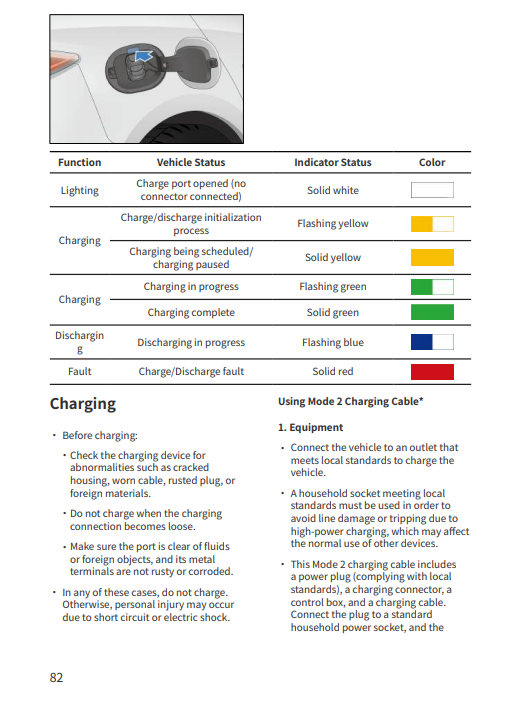
I asked a query based on the BYD Manual document using the File Search Store we created. The below response was retrieved from the document, with the relevant context found on page 82.
Output generated by the code execution:
File Search Store ID is: fileSearchStores/Product_Documents-dtm7xxxxxxxx
The BYD manual describes a charging/discharging indicator located on the right side of the vehicle body that uses different colors to show the charging status.

Here's a breakdown of the charging colors and their meanings:
*   **Solid White:**
    *   Indicates the charge port is open with no connector connected. The indicator remains solid white for a period if the charging/discharging connector is not connected.
    *   If the vehicle is locked during use, the indicator lights up for a period and then turns off. It lights up again when the vehicle is unlocked.
*   **Flashing Yellow:**
    *   Indicates the charge/discharge initialization process is underway.
*   **Solid Yellow:**
    *   Signifies that charging is being scheduled or is currently paused.
*   **Flashing Green:**
    *   Means that charging is currently in progress.
*   **Solid Green:**
    *   Indicates that charging is complete.
*   **Flashing Blue:**
    *   Shows that discharging is in progress.
*   **Solid Red:**
    *   Signals a charge/discharge fault.
Below screenshot shows the context from the BYD Manual.
Once the File Search Store is created, the following code can be used to ask queries against it using the File Search Store ID.
from google import genai
from google.genai import types

# Add your Gemini API key Here
api_key = ""
client = genai.Client(api_key=api_key)

file_search_store_id = "fileSearchStores/productdocuments-lc8rxxxxxxx"  # Replace with your File Search Store ID

response = client.models.generate_content(
    model="gemini-2.5-flash",
    contents="Explain about the BYD Assistant?",
    config=types.GenerateContentConfig(
        tools=[
            types.Tool(
                file_search=types.FileSearch(
                    file_search_store_names=[file_search_store_id]
                )
            )
        ]
    )
)

print(response.text)
Response for the Above query.
The BYD Assistant is an intelligent voice assistant designed to respond to voice commands within a BYD vehicle. It allows users to control various in-vehicle functions and access information hands-free.

You can activate the BYD Assistant in a few ways:
*   By pressing a dedicated button on the steering wheel.
*   By tapping a specific icon (S) on the infotainment touchscreen.
*   By saying the wake-up phrase: "Hi, BYD."

Once activated, the BYD Assistant can recognize and perform a variety of instructions. Examples of commands it can handle include:
*   Requesting navigation (e.g., "Go home" if shortcut locations are set).
*   Playing music or radio.
*   Making a phone call (requires contact data and a Bluetooth connection).
*   Controlling climate settings (e.g., "Set the temperature to 23°C").
*   Operating in-vehicle features like turning on seat ventilation for the driver.
Users can use the following code to list all File Search Stores available under the API key.
from google import genai

# Add your Gemini API key Here
client = genai.Client(api_key="")

# List all file-search stores
stores = client.file_search_stores.list()
for s in stores:
    print("Store name:", s.name, " Display name:", s.display_name,
          "Active docs:", getattr(s, 'active_documents_count', None))
I’ve developed an AI agent for File Search using Google ADK, which allows you to launch the agent on the web and interactively ask queries. You can provide the file path directly in the chat and start asking questions based on the uploaded content. The AI agent implementation and related code snippets are available in the GitHub repository below.
GitHub Repository: Gemini File Search
If you found this post helpful, don’t forget to share it with your fellow developers, and stay tuned for more AI deep dives!
Comments
Join the discussionNo comments yet. Be the first to comment.